How to create document using OnlyFake Document Generator 4.0
Step-by-step instructions to create IDs, licenses, and more with OnlyFake AI-powered document generator.

Onlyfake Team
Document generation experts passionate about the intersection of AI and automation. We help businesses streamline their document workflows with cutting-edge technology.
Creating high-quality documents has never been easier. With Onlyfake, an AI-powered ai document generator, you can design prank IDs, licenses, and more in just a few steps. This guide walks you through everything you need to know — from signing up to generating your first document — so you can get started right away.
Whether you’re exploring modern ai tools, looking for an id generator for entertainment purposes, or just curious about ai-generated images, this step-by-step tutorial will help.
1. Sign Up for Onlyfake
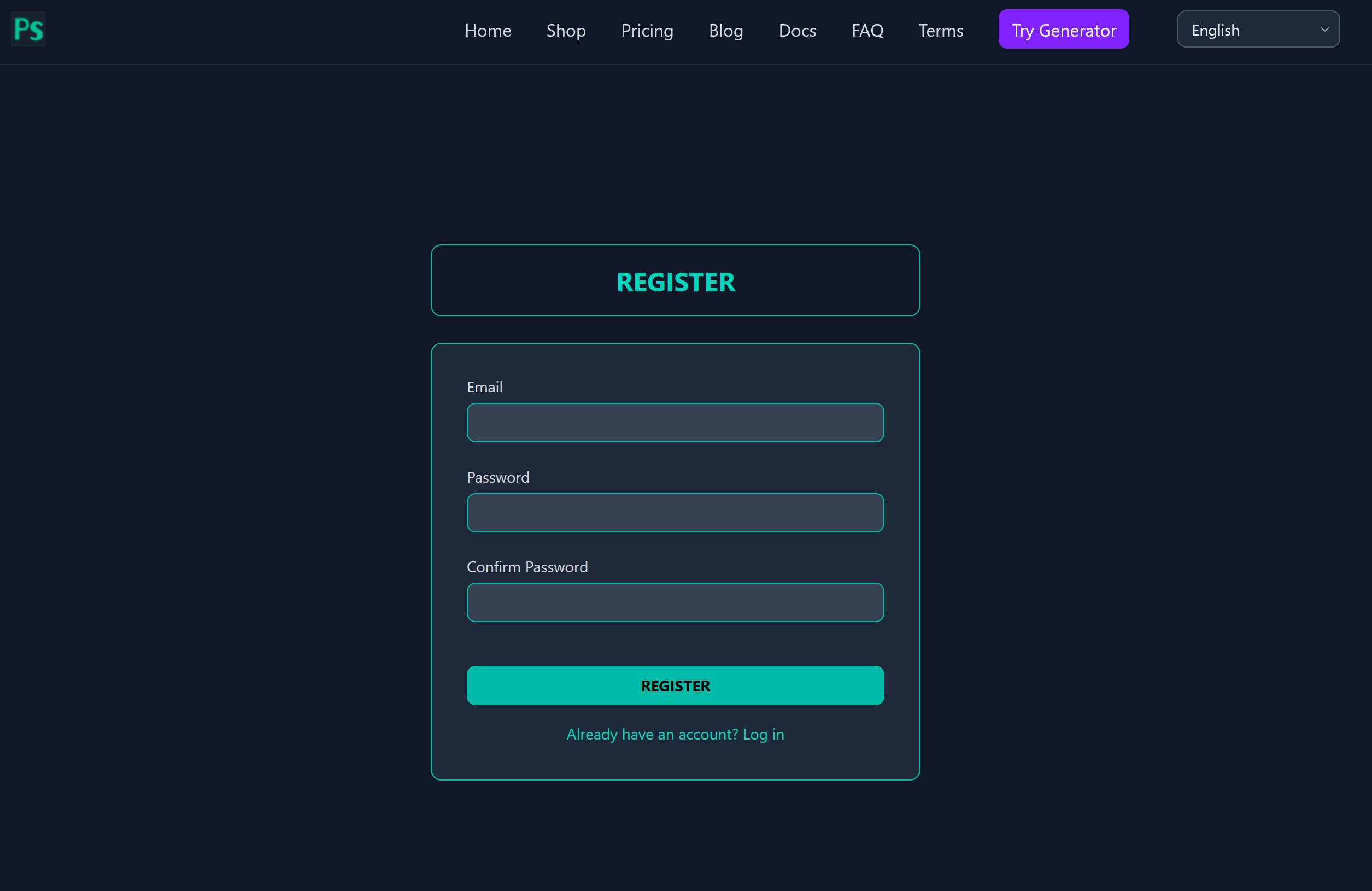
Getting started with Onlyfake is quick and simple. Unlike many platforms, you don’t need to go through long confirmation processes or wait for email verification.
- Go to the Onlyfake website.
- Click Sign Up.
- Create your account with basic details.
That’s it — you’re ready to start exploring our ai document generator.
2. Choose a Plan That Fits You
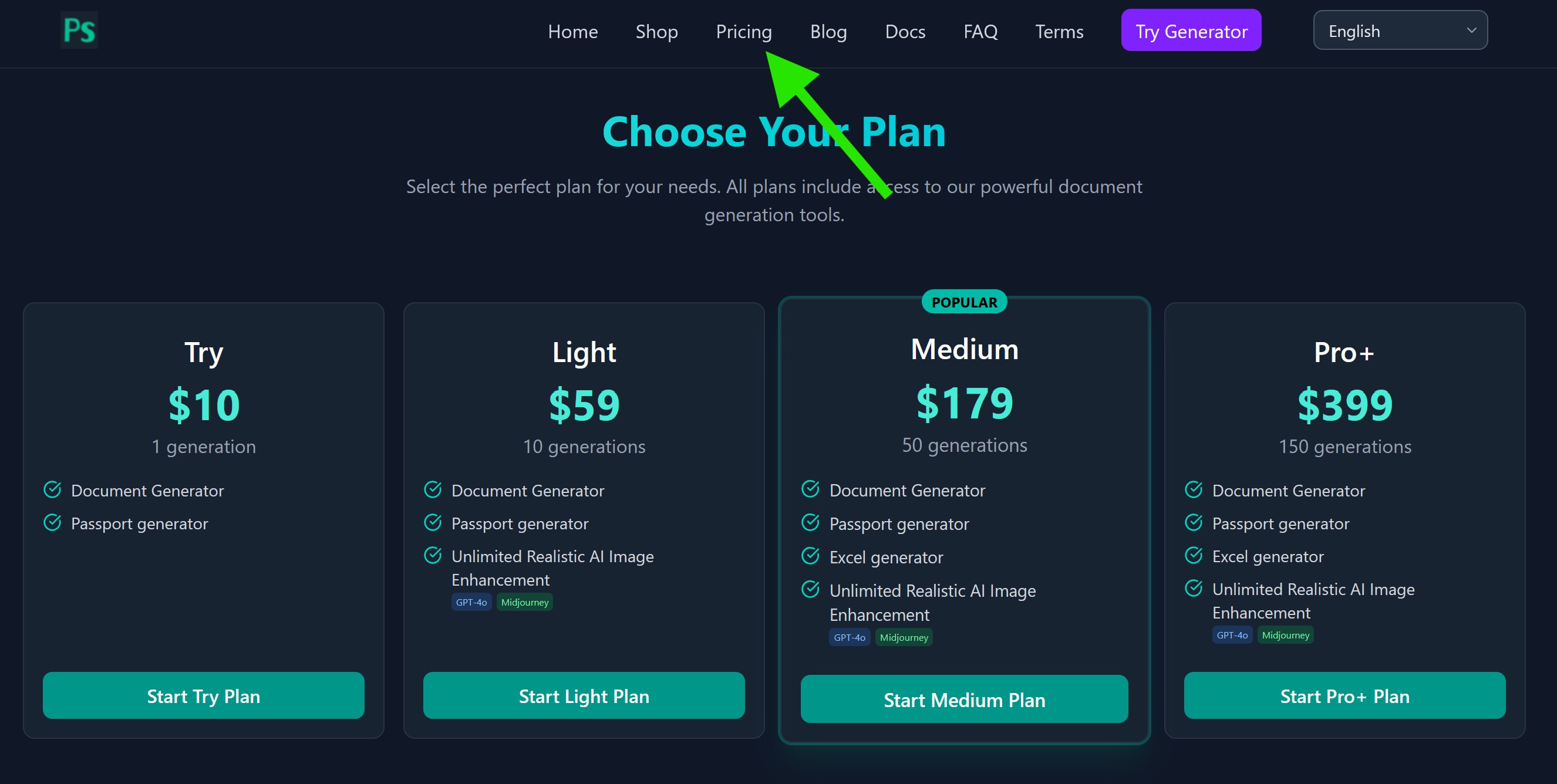

Before you can start generating documents, you’ll need credits. Credits power our ai tools, letting you create realistic, high-quality templates.
Go to the Plans Page
Browse the available subscription options.
Pick the Plan That Fits Best
If you’re just testing things out, start small. If you plan on generating multiple documents, a larger plan offers better value.
Activate Your Plan
Once your purchase is complete, your dashboard will display your available credits. These credits are what you’ll use when removing watermarks from your generated files.
Tip: If you run out of credits, you can always top up later without losing access to your account.
3. Create Your First Document
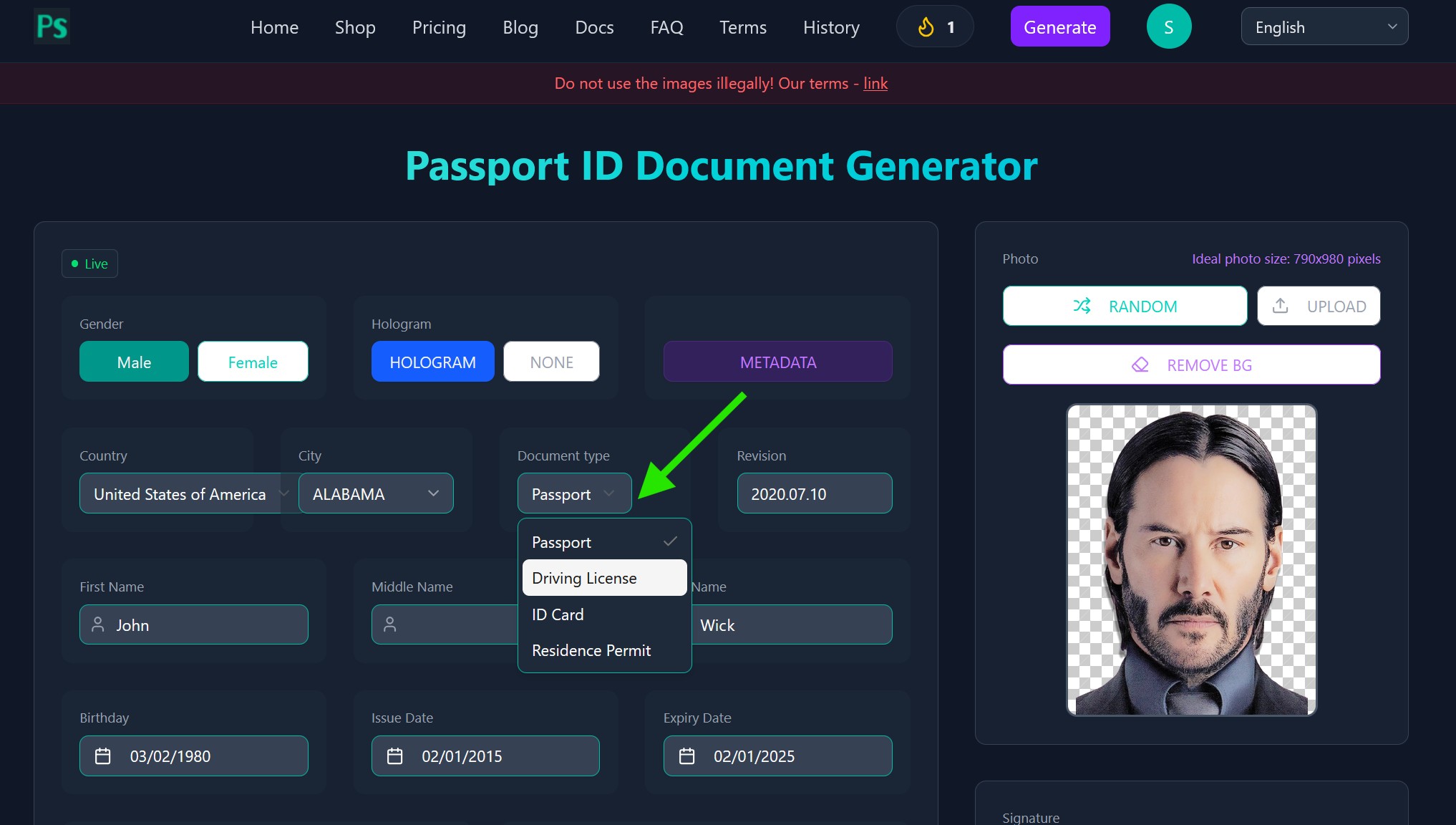
Now comes the fun part — using OnlyfakeAI-powered generator to create your prank document.
Select the Document Type
From the left-hand menu, choose the type of file you want to generate (for example, a passport or license template).
Fill Out the Fields
Each template comes with input fields — like name, address, or date of birth. Don’t worry if you’re unsure about formatting; the platform provides hints (like correct date formats) to make it easy.
Upload a Photo
Want your document to look even more realistic? Upload your own photo (PNG or JPG). If you’d rather skip this step, you can use the default placeholder image provided.
Generate the Document
Click Generate and wait about 40 seconds. At this stage, Onlyfake will create an ai-generated preview of your document.
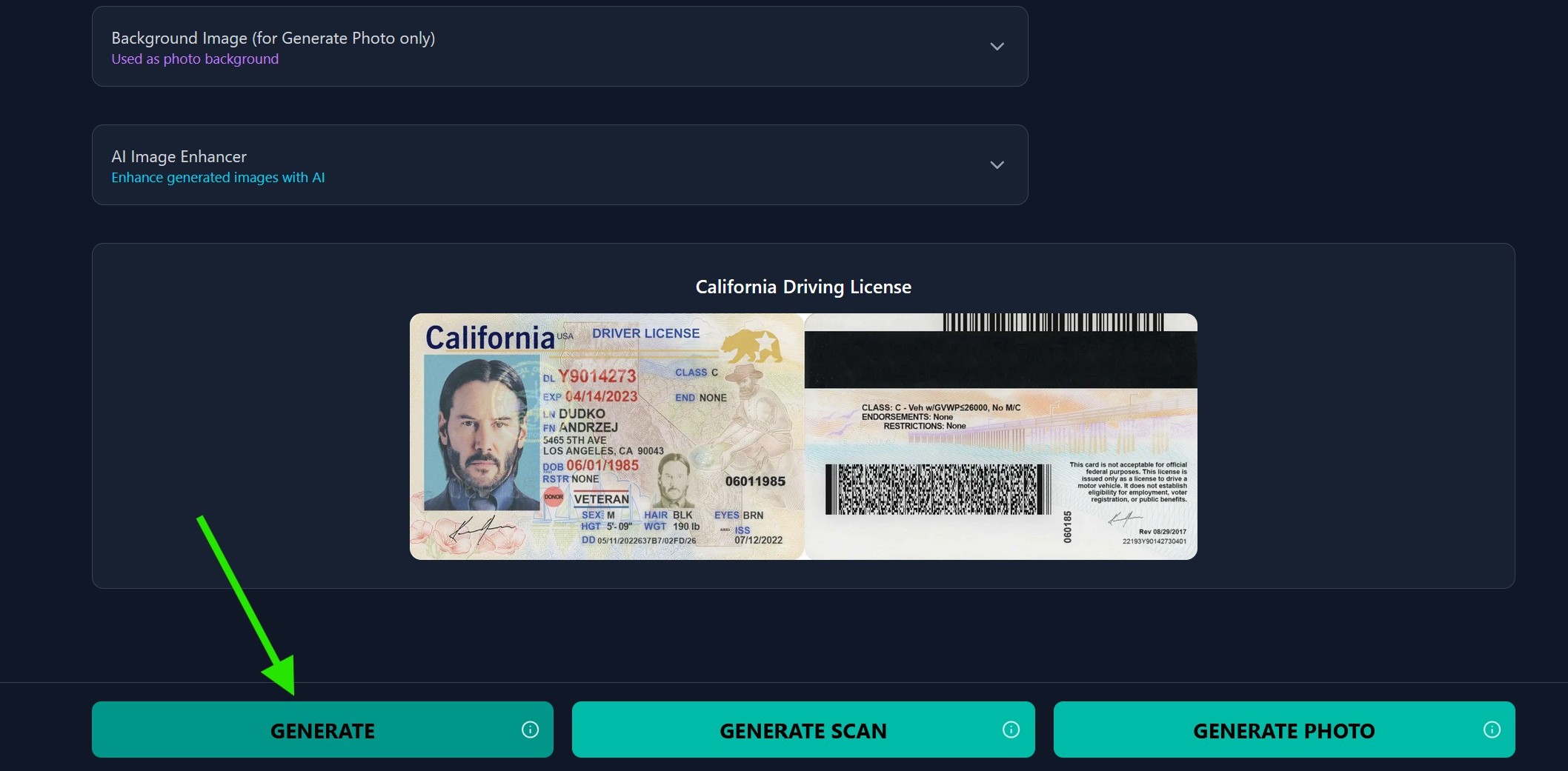
4. Preview with Watermark
When the document is ready, you’ll first see a preview image with a watermark.
- The preview is free — no credits are used yet.
- You can check for typos, formatting issues, or incorrect details.
Take your time reviewing. It’s better to catch errors now before finalizing.
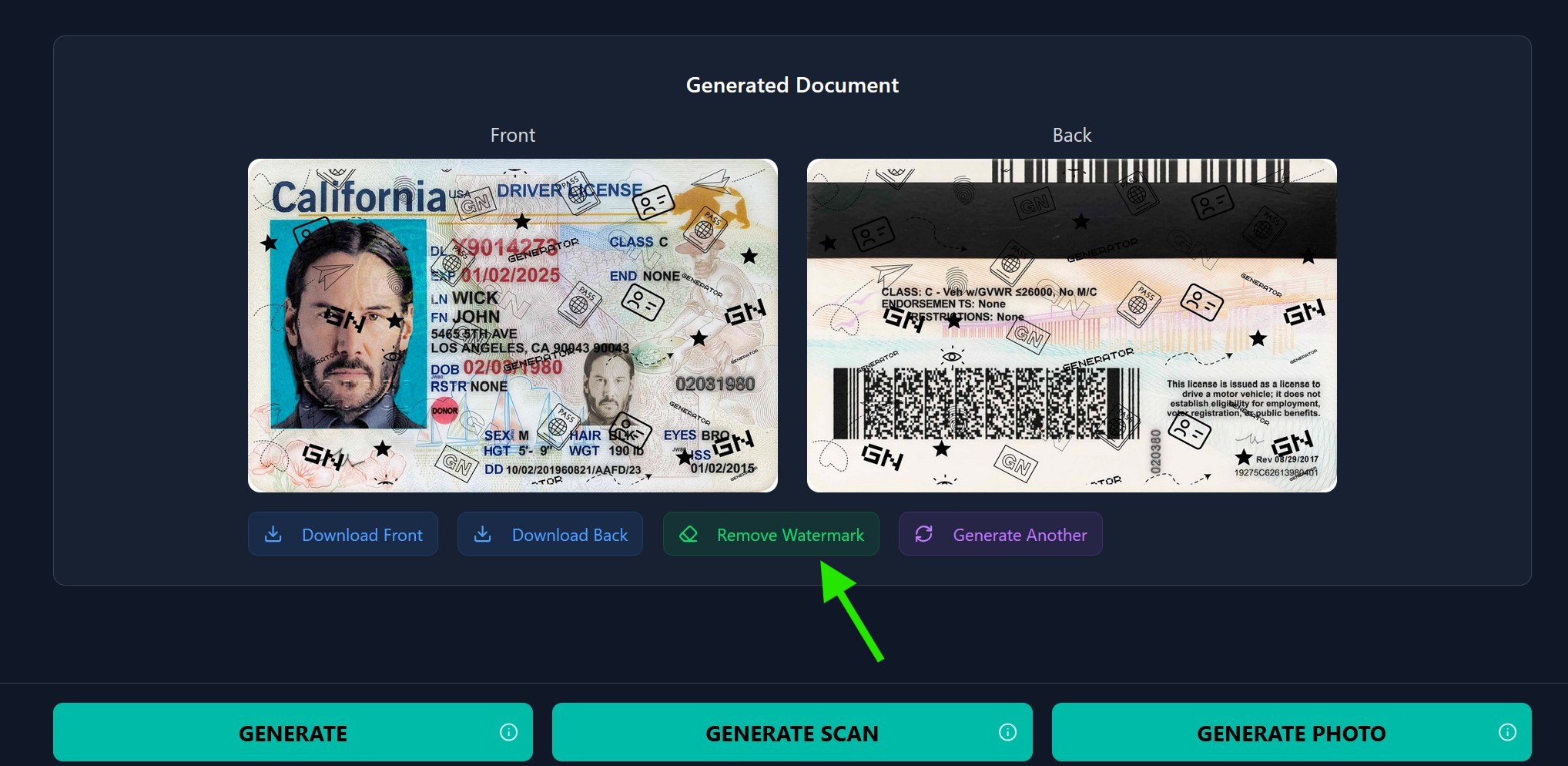
5. Remove the Watermark
Once you’re happy with the preview:
- Click Remove Watermark.
- Your credits will be deducted.
- You’ll instantly receive the high-quality, watermark-free image.
This is the final version of your prank document — ready for entertainment and personal use.
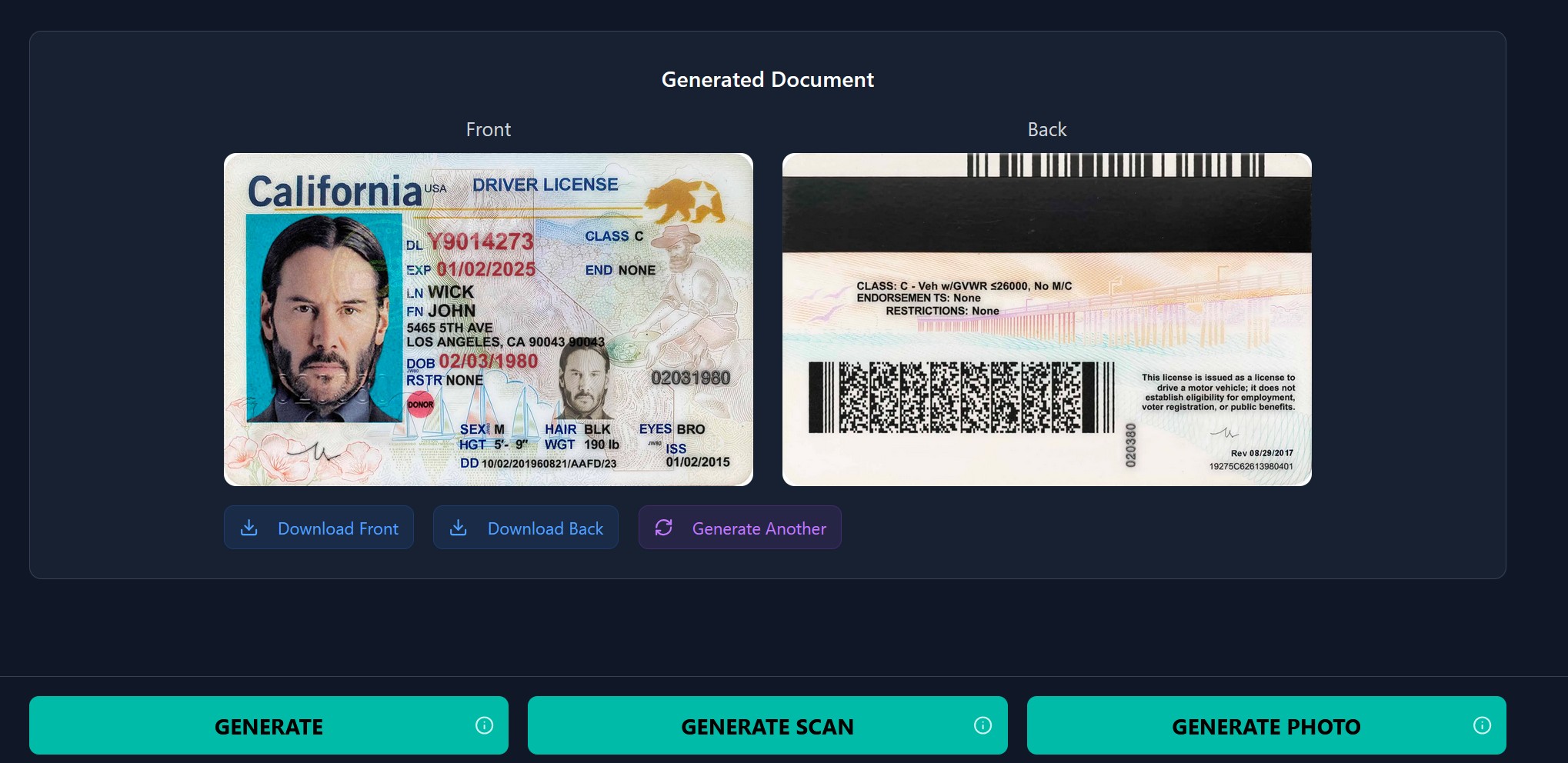
6. If Generation Times Out
Sometimes, the AI generator may take a little longer. If it times out, don’t worry:
- No credits will be deducted.
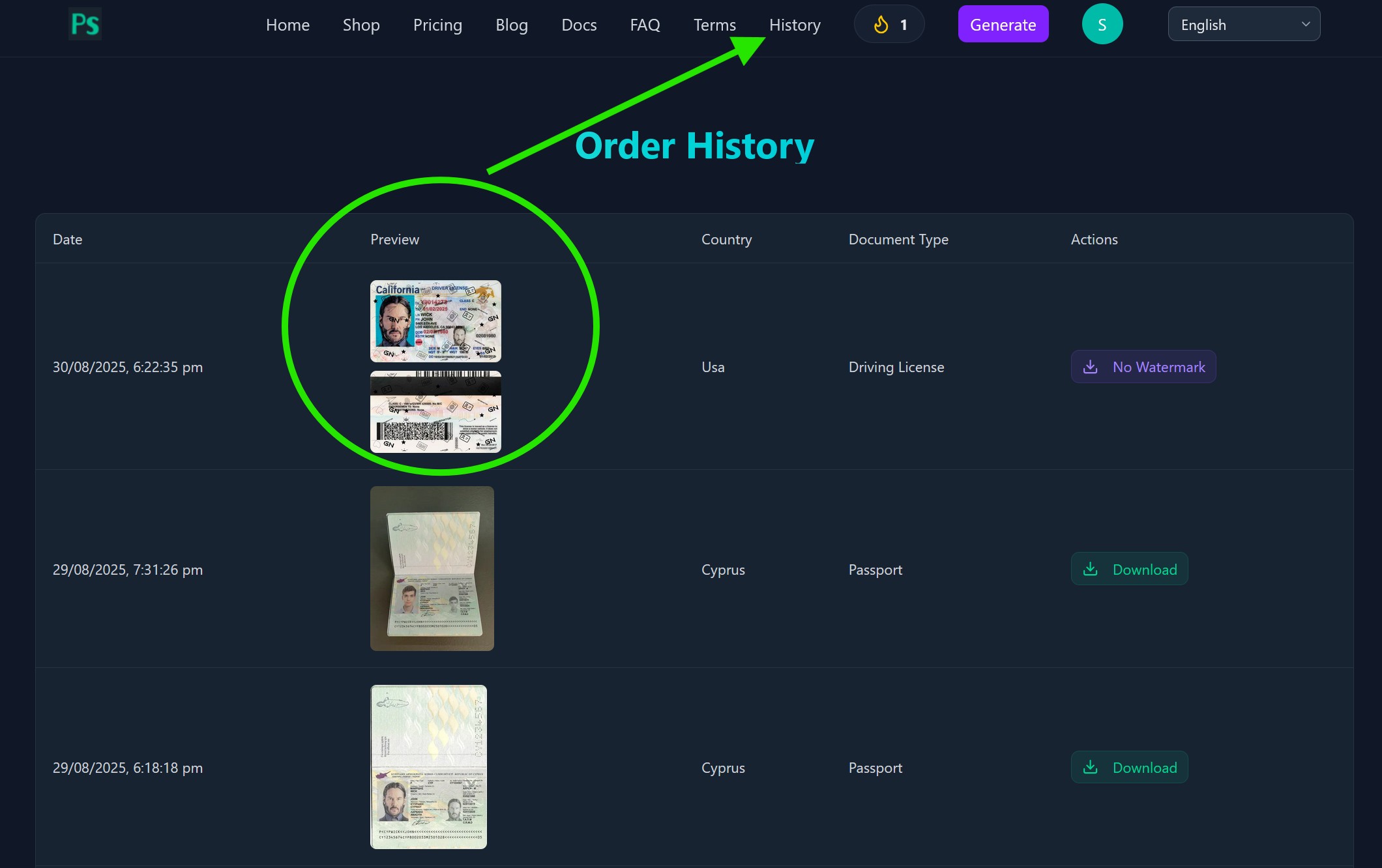
- In many cases, the document has already finished generating in the background.
- To check, go to your Order History page.
This way, you’ll never lose credits due to system delays.
7. Need More Credits?
Running out of credits is normal, especially if you’re experimenting with multiple templates. To top up:
- Head back to the Plans page.
- Select the plan you want.
- Add credits instantly to your account.
With more credits, you can continue creating as many documents as you like.
8. Customer Support
If you run into any issues or questions:
- Visit our Help Center.
- Reach out to our support team.
We’re always ready to assist you with using Onlyfake or troubleshooting problems.
⚠️ Disclaimer
Our id generator and document templates are for entertainment purposes only.
- Do not use these files for illegal activities.
- Do not attempt identity fraud or misrepresentation.
- Have fun pranking responsibly with friends and family.
We are not responsible for any misuse of the content generated.
Final Thoughts
Onlyfake makes it easy to experiment with modern ai tools and see the power of an ai document generator in action. With just a few clicks, you can create high-quality, customizable documents for entertainment.
Whether you’re curious about how ai-generated images work, need a creative prank for a friend, or just want to explore what an id generator can do, Onlyfake is here to make the process simple, fast, and fun.